Enable SSH to WSL 2.0 from other machines
Often, I’m working on a separate machine and I have docker and other services running or files sitting in my windows machine. Instead of allowing RDP to access my windows machine, I find it easier to just use ssh / scp to do what I need to di via WSL.
It is quite straightforward process, as described below.
- Do this in WSL
- Install openssh-server
- sudo apt update
- sudo apt -y install openssh-server
- Edit /etc/ssh/sshd_config to enable port 22
- Set port 22 for SSH by uncommenting (remove # sign) for this line
- Port 22
- Allow password login by uncommenting (remove # sign) for this line
- PasswordAuthentication yes
- Allow key based login by uncommenting (remove # sign) for this line
- PubkeyAuthentication yes
- Set port 22 for SSH by uncommenting (remove # sign) for this line
- Set sshd to auto-start and start sshd service
- systemctl enable ssh –now
- Install openssh-server
- Do this in powershell
- Enable redirect / proxy from windows to WSL
- Launch Task Scheduler (press WINDOWS key and search for Task Scheduler)
- Left click on “Task Scheduler (Local)” and select “Create Task”

- Enter the following details in General tab
- Name: WSL SSH
- Select “Run whether user is logged in or not”
- Check the box for “Run with highest privileges”

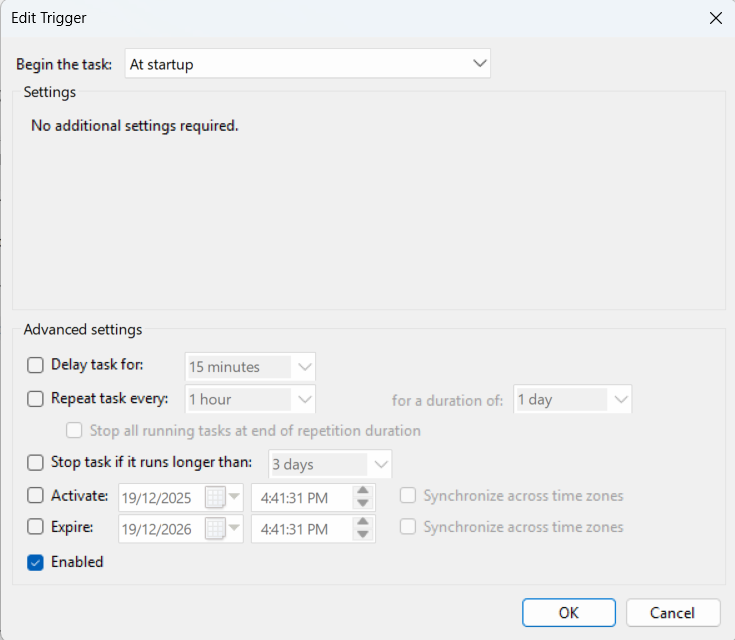
- Then enter the following details in Triggers tab (Click on Triggers tab then New)
- Begin the task: At startup

- Followed by the following details in Actions tab (Click on Actions tab then New)
- Action: Start a program
- Program/script: powershell.exe
- Add arguments (optional): -ExecutionPolicy Bypass -File “C:\app\wsl-ssh.ps1”

- Create wsl-ssh.ps1 script in C:\app
$wslIP = wsl hostname -I | ForEach-Object { $_.Trim() }netsh interface portproxy delete v4tov4 listenaddress=* listenport=22netsh interface portproxy add v4tov4 listenaddress=* listenport=22 connectaddress=$wslIP connectport=22wsl -d Debian -- sudo /usr/sbin/service ssh start
- Enable redirect / proxy from windows to WSL
- Test out the setup
- Go to a different machine in the network
- ssh <wsl_username>@<wsl_ip>
- If you ever need to edit it, you can find the task under “Task Scheduler (Local)”->”Task Scheduler Library”
- Done
